# TorqueVault User Guide
TorqueVault is an application used to communicate with digital torque wrenches via Bluetooth Low Energy (BLE). The application communicates with a backend server via a RESTful API to get data and upload measurement values obtained from the wrenches.
---
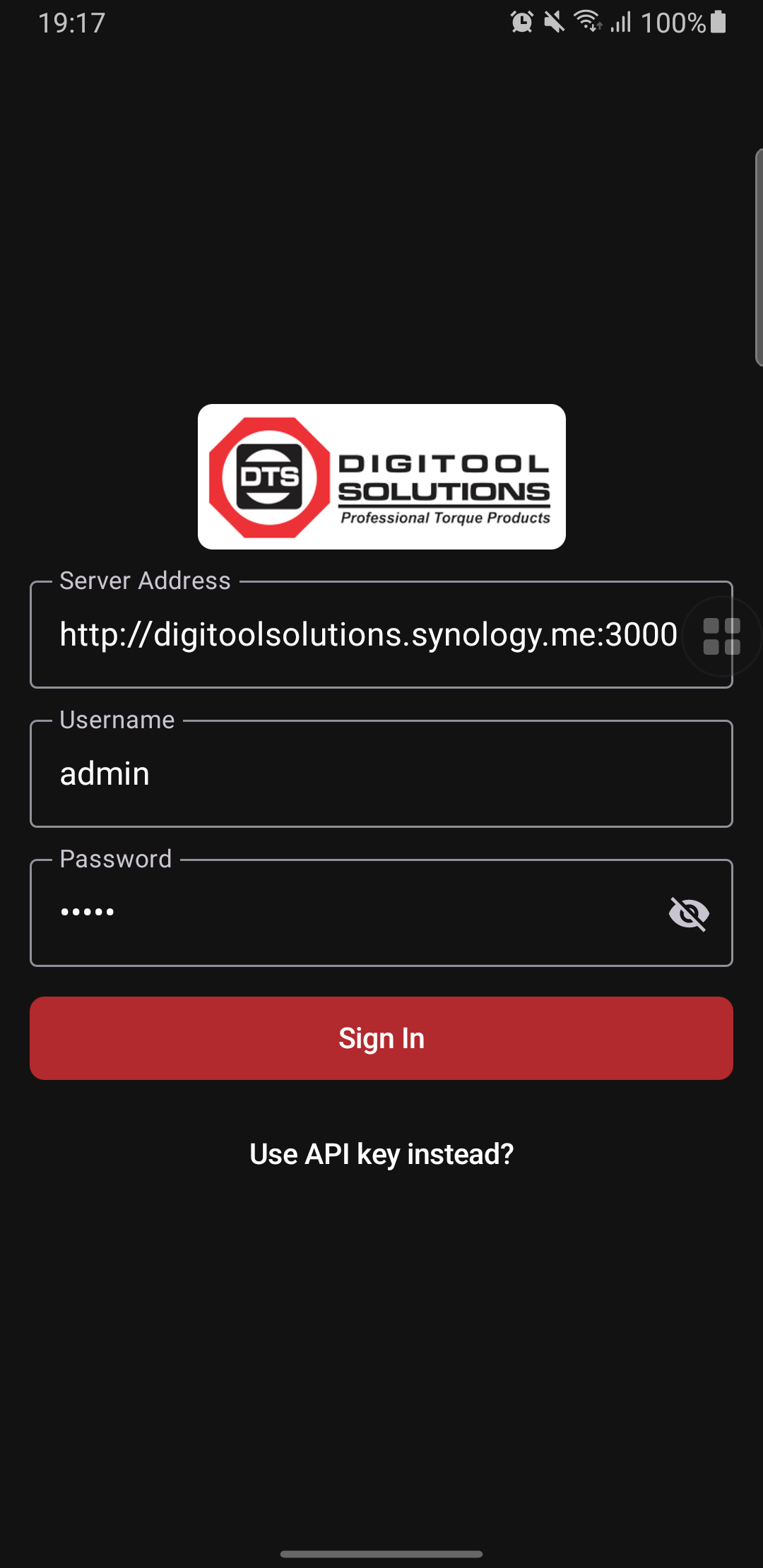
## 1. Login Screen
Authentication interface for securing access to the application.
* **Server Configuration:** Entry of the backend API server URL for synchronization.
* **Authentication Methods:**
* **Credentials:** Login using a registered username and password.
* **API Key:** Alternative login method using a unique API token.
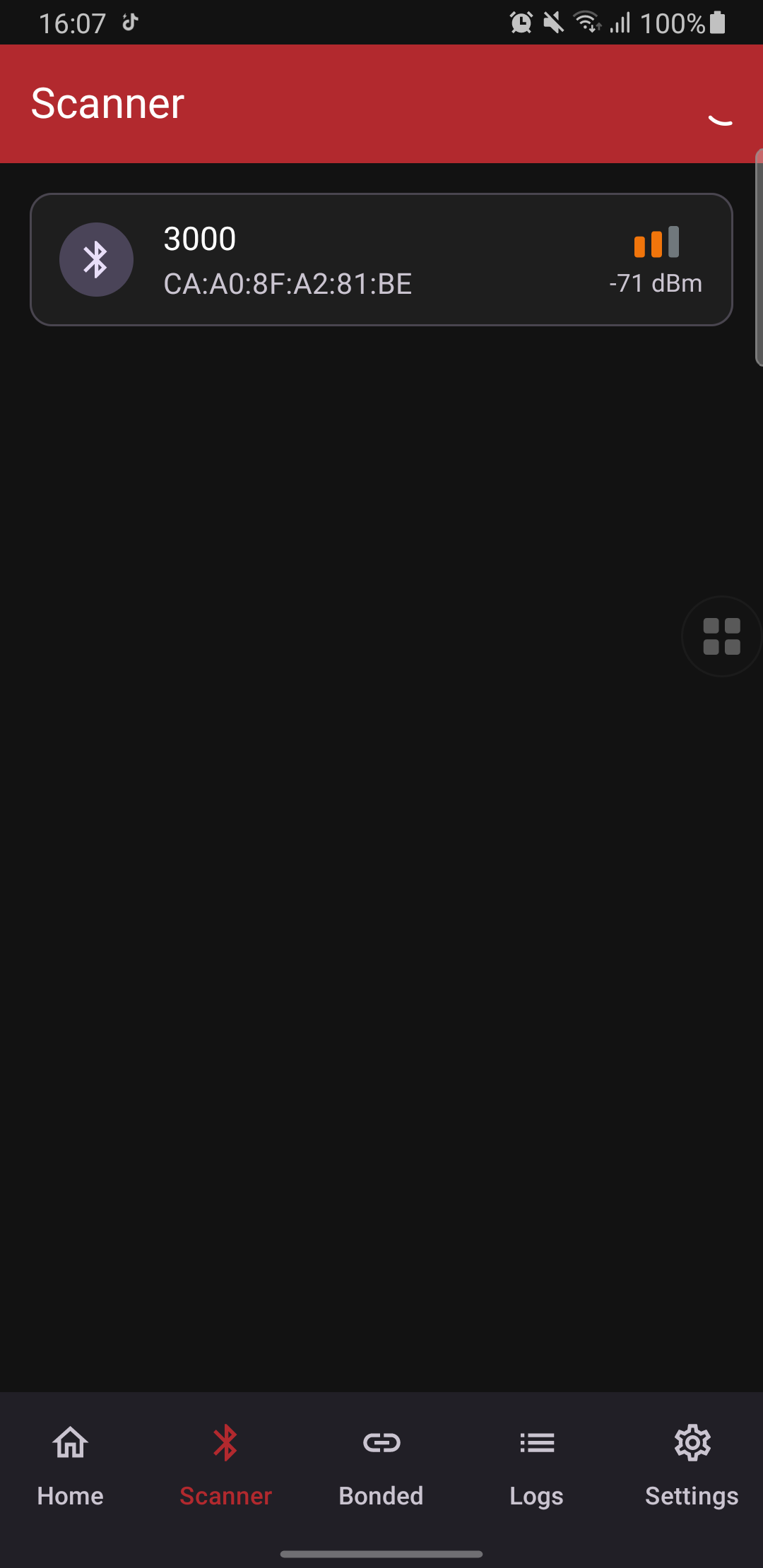
## 2. Scanner Screen
Facilitates the discovery of nearby tools.
* **Search:** Automatic scanning for active Bluetooth torque devices.
* **Signal Strength:** Proximity indication via the signal icon (RSSI).
* **Connect:** Tap a device name to initiate a connection. The device is automatically bonded upon the first successful connection.
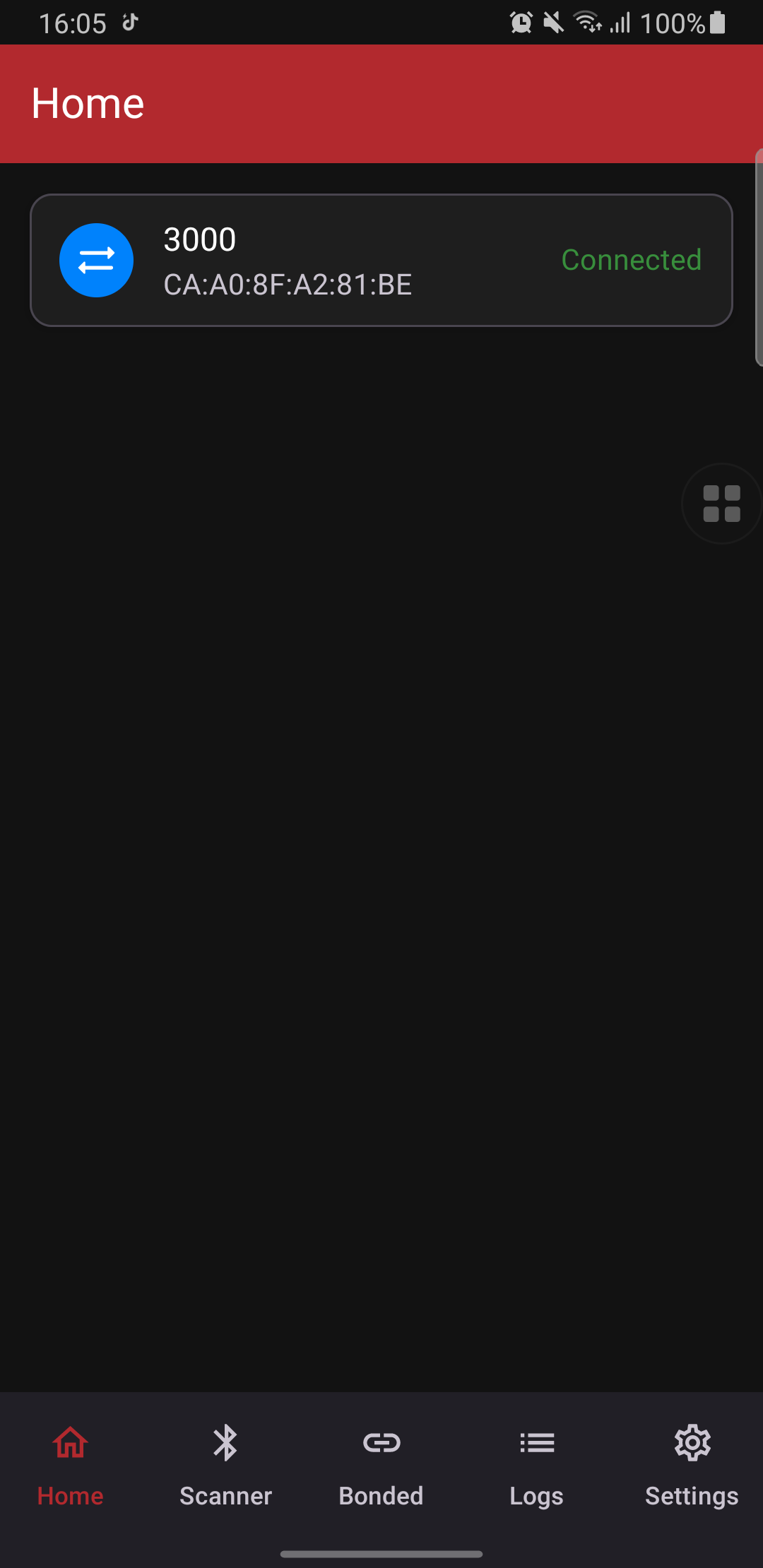
## 3. Home Screen
Primary dashboard for active tool management.
* **Overview:** Display of all currently connected devices.
* **Quick Access:** One-tap entry to the communication screen of any connected tool.
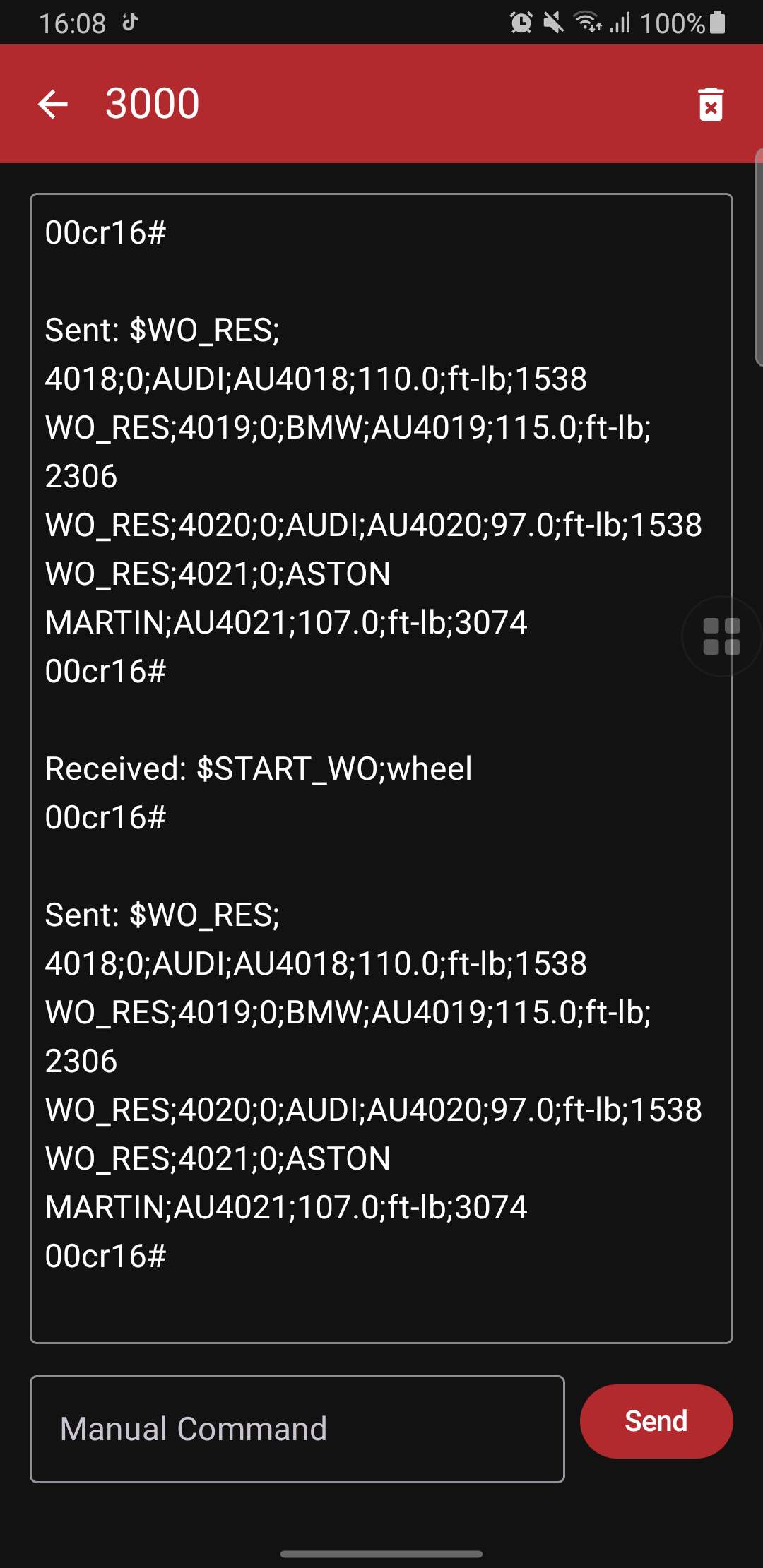
## 4. Communication Screen
Direct interaction interface for selected tools.
* **UART Data Exchange:** Display of UART commands exchanged between the torque wrench and the application.
* **Command Transmission:** Ability to send specific instructions or protocol commands.
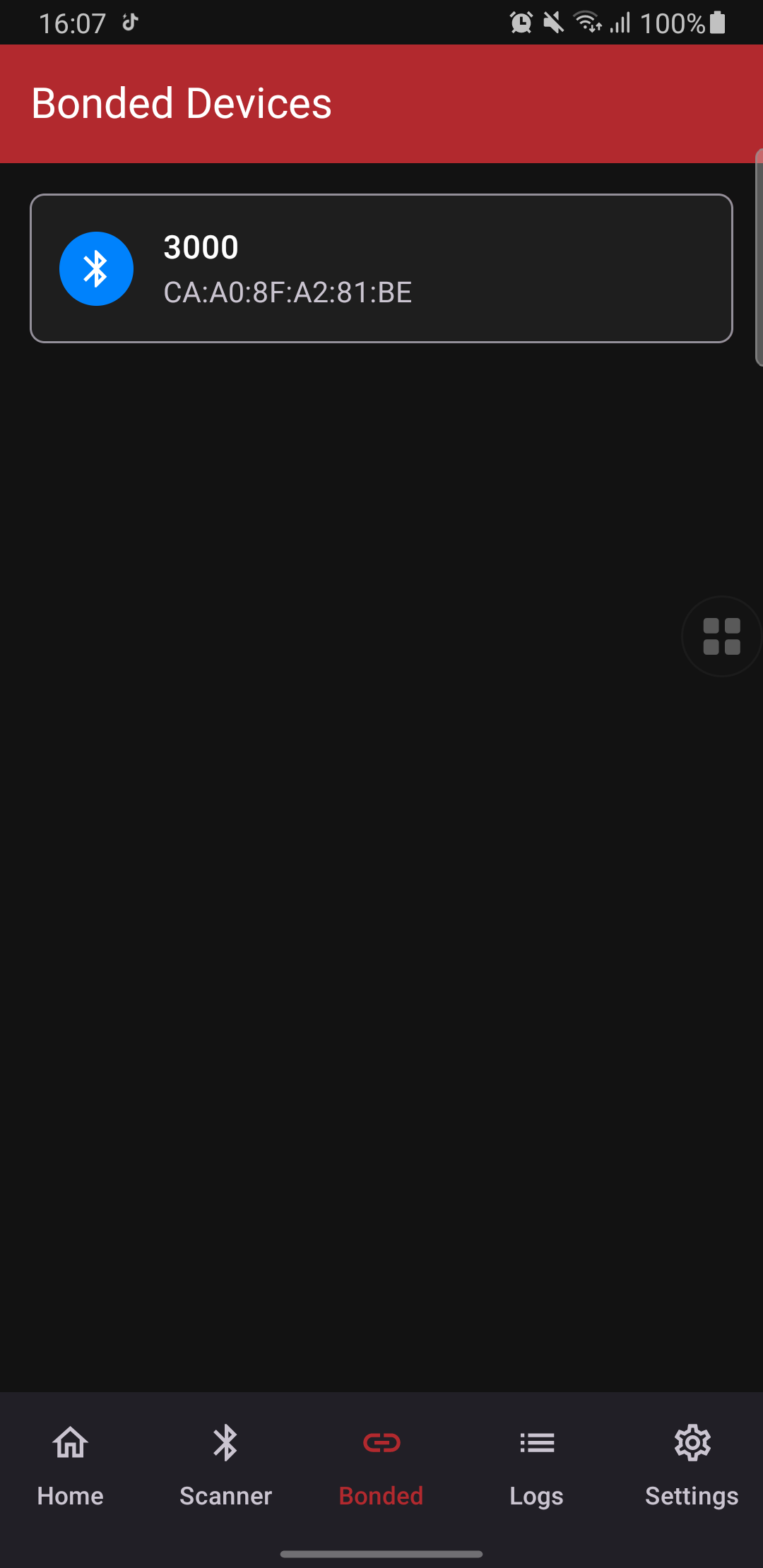
## 5. Bonded Devices Screen
Management of previously paired tools.
* **Bonded devices:** List of all previously paired devices.
* **Device management:** Option to remove obsolete tool records via the delete icon.
* **Auto-Connect Capability:** Automatic reconnection for bonded tools within range if the "Auto-Connect" option is enabled in the Settings screen.
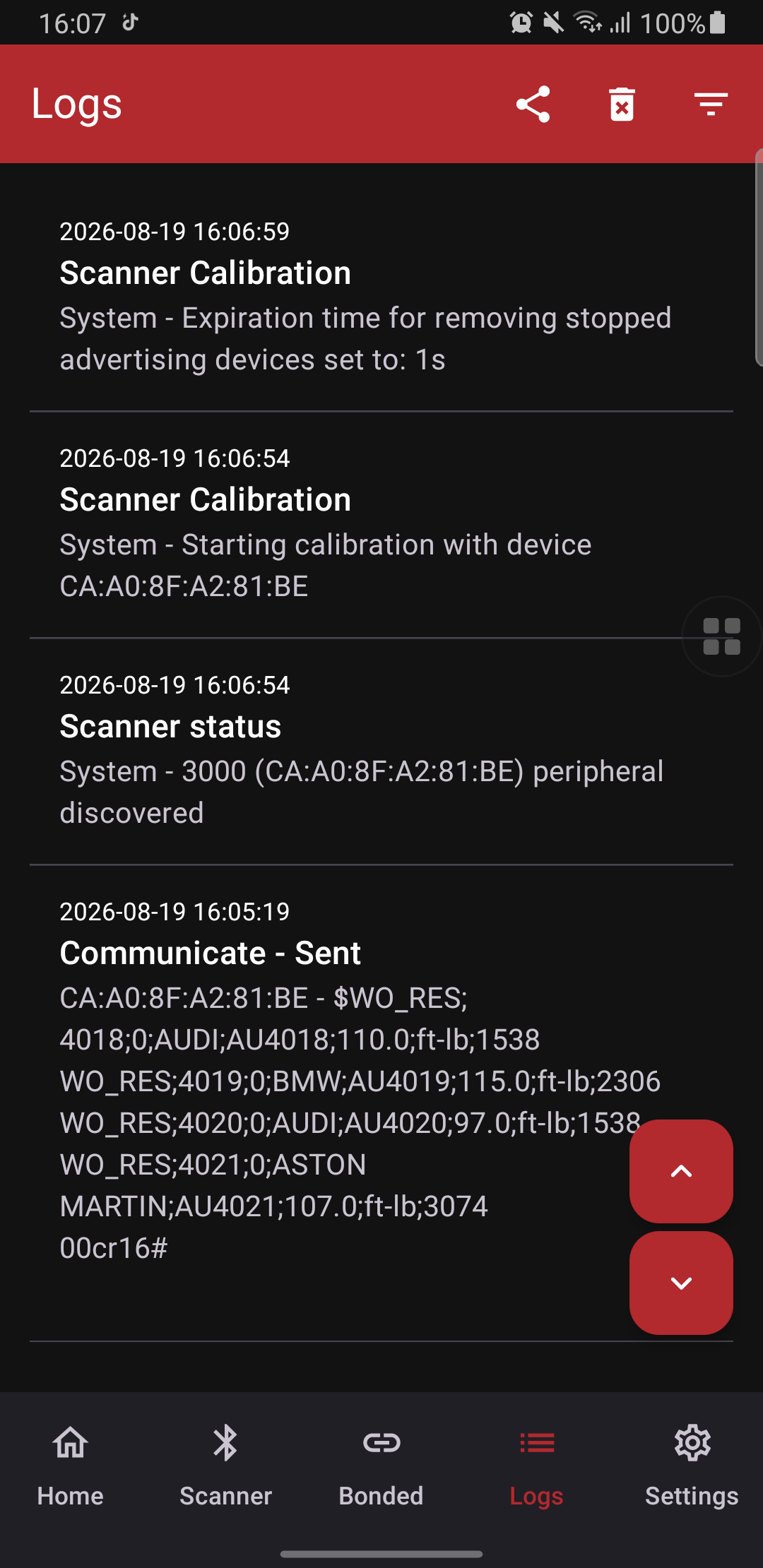
## 6. Logs Screen
Tracking of system activity and communication logs for the current session. This screen is hidden by default and can be enabled via the "Show logs" option in the Settings screen.
* **Session Logs:** Detailed log of application activities and data exchanges.
* **Filter Options:** Categorization between system messages and tool data.
* **Data Export:** Capability to share logs in Text or CSV format for diagnostic purposes.
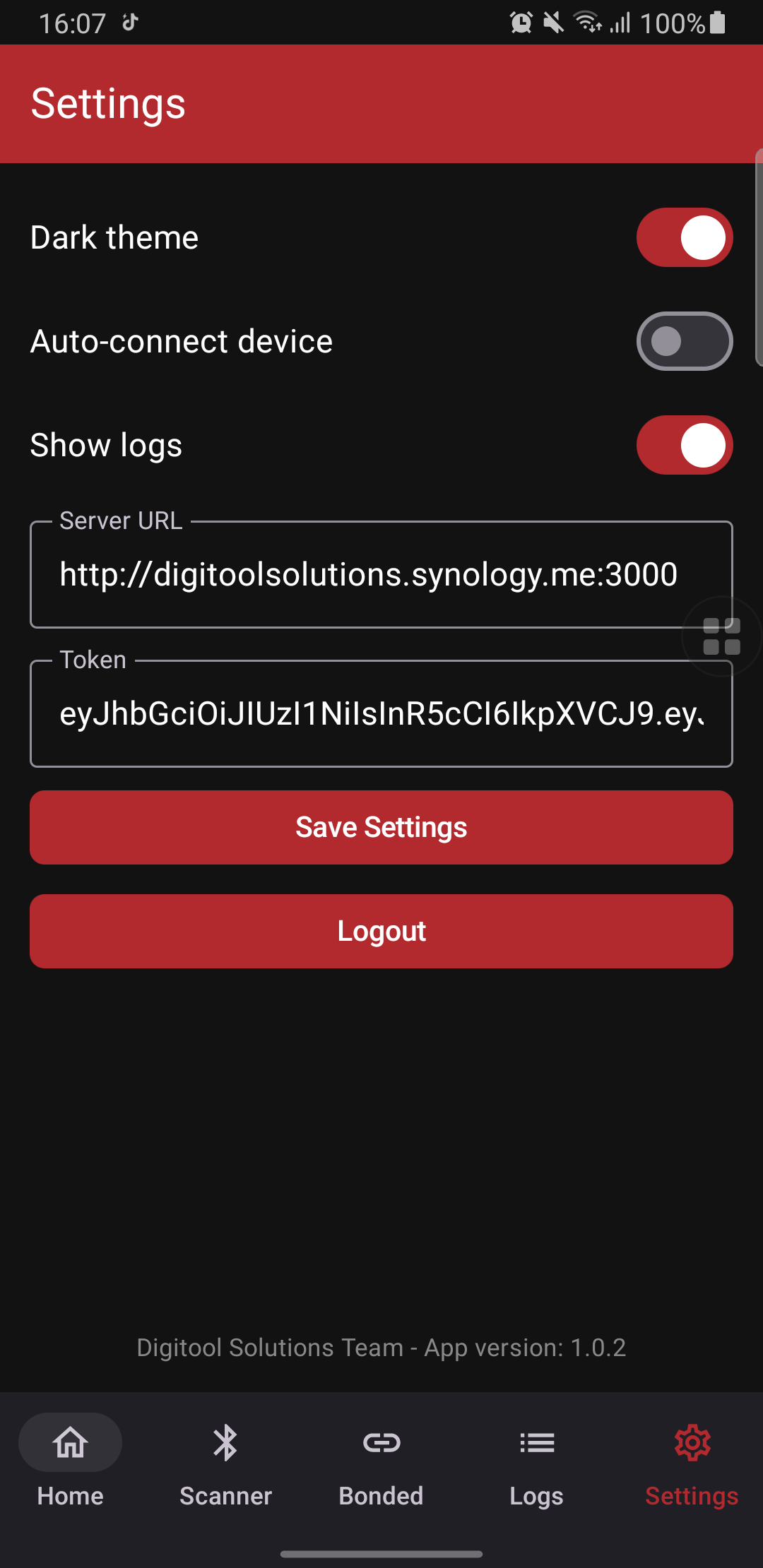
## 7. Settings Screen
Application-wide configuration.
* **Theme Selection:** Toggle between Light and Dark visual modes.
* **Connection Policy:** Management of the auto-connect feature for bonded tools.
* **Server:** Configuration of the backend server URL to get work orders and upload measurement data.
---
*Developed by Digitool Solutions*
*Last updated: Aug 19, 2026*